Railsチュートリアルで静的ページの作成について勉強したので、一連の流れをまとめてみました。
rails newコマンドでアプリの作成
$ cd rails_projects
$ rails _4.0.5_ new bootstrap_app --skip-test-unit
$ cd bootstrap_app
testディレクトリを作成しないようにします。(Rspecを使ってテストします。)
※rails newコマンドを実行するときはバージョン指定しないと後でエラーが発生するかも。
Gemfileを設定します。
source 'https://rubygems.org'
ruby '2.0.0'
#ruby-gemset=railstutorial_rails_4_0

gem 'rails', '4.0.5'

group :development, :test do
  gem 'sqlite3', '1.3.8'
  gem 'rspec-rails', '2.13.1'
end

group :test do
  gem 'selenium-webdriver', '2.35.1'
  gem 'capybara', '2.1.0'
end

gem 'sass-rails', '4.0.5'
gem 'uglifier', '2.1.1'
gem 'coffee-rails', '4.0.1'
gem 'jquery-rails', '3.0.4'
gem 'turbolinks', '1.1.1'
gem 'jbuilder', '1.0.2'

group :doc do
  gem 'sdoc', '0.3.20', require: false
end

group :production do
  gem 'pg', '0.15.1'
  gem 'rails_12factor', '0.0.2'
end
秘密トークンを動的に生成
やっておく必要があるみたいです。
config/initializers/secret_token.rb
# Be sure to restart your server when you modify this file.

# Your secret key is used for verifying the integrity of signed cookies.
# If you change this key, all old signed cookies will become invalid!

# Make sure the secret is at least 30 characters and all random,
# no regular words or you'll be exposed to dictionary attacks.
# You can use `rake secret` to generate a secure secret key.

# Make sure your secret_key_base is kept private
# if you're sharing your code publicly.
require 'securerandom'

def secure_token
  token_file = Rails.root.join('.secret')
  if File.exist?(token_file)
    # Use the existing token.
    File.read(token_file).chomp
  else
    # Generate a new token and store it in token_file.
    token = SecureRandom.hex(64)
    File.write(token_file, token)
    token
  end
end

BootstrapApp::Application.config.secret_key_base = secure_token
Gemファイルを編集したら
$ bundle install --without production
$ bundle update
$ bundle install
.gitignoreの設定
# Ignore bundler config.
/.bundle

# Ignore the default SQLite database.
/db/*.sqlite3
/db/*.sqlite3-journal

# Ignore all logfiles and tempfiles.
/log/*.log
/tmp

# Ignore other unneeded files.
doc/
*.swp
*~
.project
.DS_Store
.idea
.secret
RSpec使用の宣言
Test::Unitの代わりにRSpecを使うように、Railsの設定を変更します。
$ rails generate rspec:install

Gitの初期化
$ git init
$ git add .
$ git commit -m "Initial commit"
READMEファイルを編集
$ subl README.rdoc
編集内容
### Ruby on Rails Sample Application
拡張子を .md に変更し、Markdownファイルとして認識できるようにします。その後、これらの変更をコミットします。
$ git mv README.rdoc README.md
$ git commit -am "Improve the README"
GitHubにリポジトリを作成してPushします。
$ git remote add origin git@github.com:tyoshikawa1106/rails-bootstrap-app.git
$ git push -u origin master
Herokuにデプロイ
$ heroku create
$ git push heroku master
$ heroku run rake db:migrate
Herokuアプリ名の変更
$ heroku rename <<変更後のアプリ名>>
トピックブランチの作成
$ git checkout -b static-pages
$ git branch
rails generateコマンドでコントローラ作成
$ rails generate controller StaticPages home help --no-test-framework
static_pagesのviewやhelper / controllerが作成されます。

localhostからviewにアクセスできるようになります。

Git Commit
$ git add .
$ git commit -m "Add a StaticPages controller"
静的なページに対する結合テストを生成
$ rails generate integration_test static_pages
spec/requests/static_pages_spec.rb
require 'spec_helper'

describe "Static pages" do

  describe "Home page" do

    it "should have the content 'Sample App'" do
      visit '/static_pages/home'
      expect(page).to have_content('Sample App')
    end
  end
end
spec/spec_helper.rb
# This file is copied to spec/ when you run 'rails generate rspec:install'
.
.
.
RSpec.configure do |config|
  .
  .
  .
  config.include Capybara::DSL
end
Homeページの変更
app/views/static_pages/home.html.erb
<h1>Sample App</h1>
<p>
    This is the home page for the
  <a href="http://railstutorial.jp/">Ruby on Rails Tutorial</a>
    sample application.
</p>
ここまでの対応で、テストがエラーにならずに実行できます。
$ bundle exec rspec spec/

Helpページの変更
まずはテストの方から変更します。
spec/requests/static_pages_spec.rb
require 'spec_helper'

describe "Static pages" do

  describe "Home page" do

    it "should have the content 'Sample App'" do
      visit '/static_pages/home'
      expect(page).to have_content('Sample App')
    end
  end

  describe "Help page" do

    it "should have the content 'Help'" do
      visit '/static_pages/help'
      expect(page).to have_content('Help')
    end
  end
end
続いてHTMLを変更します。
app/views/static_pages/help.html.erb
<h1>Help</h1>
<p>
  Get help on the Ruby on Rails Tutorial at the
  <a href="http://railstutorial.jp/help">Rails Tutorial help page</a>
  .
  To get help on this sample app, see the
  <a href="http://railstutorial.jp/book">Rails Tutorial book</a>
</p>
Helpページもテストがエラーにならずに実行されます。
$ bundle exec rspec spec/

Aboutページの追加
Aboutページは自動生成されていないので、自分で作成していきます。
spec/requests/static_pages_spec.rb
require 'spec_helper'

describe "Static pages" do

  (略)

  describe "About page" do

    it "should have the content 'About'" do
      visit '/static_pages/about'
      expect(page).to have_content('About')
    end
  end
end
テストでエラーになることを確認。
$ bundle exec rspec spec/requests/static_pages_spec.rb
Aboutページをルートに追加します。
config/routes.rb
BootstrapApp::Application.routes.draw do
  get "static_pages/home"
  get "static_pages/help"
  get "static_pages/about"

コントローラにAboutページの情報を追加します。
app/controllers/static_pages_controller.rb
class StaticPagesController < ApplicationController
  def home
  end

  def help
  end

  def about
  end
end
ViewにAboutページのHTMLを用意します。
app/views/static_pages/about.html.erb
<h1>About</h1>
<p>
  Get help on the Ruby on Rails Tutorial at the
  <a href="http://railstutorial.jp/help">Rails Tutorial help page</a>
  .
  To get help on this sample app, see the
  <a href="http://railstutorial.jp/book">Rails Tutorial book</a>
</p>
routes.rb, static_pages_controller.rb, about.html.erbの3箇所を修正するとテストが正常に実行できるようになります。
$ bundle exec rspec spec/requests/static_pages_spec.rb

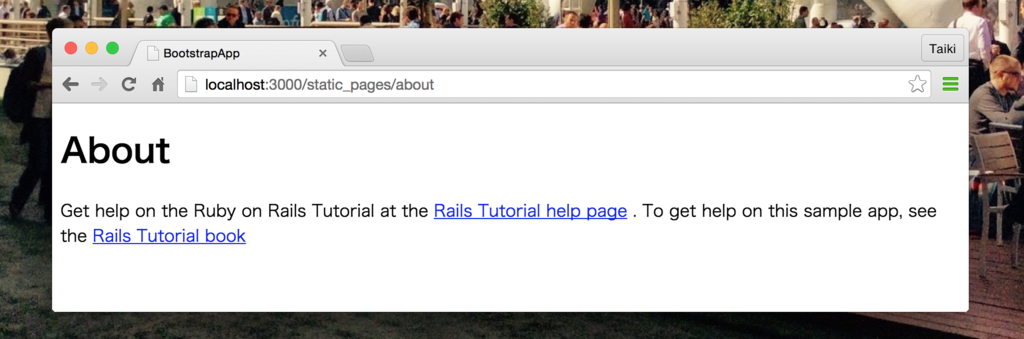
rails s コマンドを実行してAboutページにアクセスできます。
viewのlaoutsで共通化
viewのlayoutsは書くページで共通で使用できるHTMLを持ちます。
app/views/layouts/application.html.erb
<!DOCTYPE html>
<html>
  <head>
    <title>Ruby on Rails Tutorial Sample App | <%= yield(:title) %></title>
    <%= stylesheet_link_tag "application", media: "all",
                                           "data-turbolinks-track" => true %>
    <%= javascript_include_tag "application", "data-turbolinks-track" => true %>
    <%= csrf_meta_tags %>
  </head>
  <body>

    <%= yield %>

  </body>
</html>
AboutページとHelpページに下記処理を追加します。
<% provide(:title, 'About Us') %>

これでページごとにタイトルを切り替えることができます。
Git Commit
静的なページが作成できたので、テストでエラーにならないことを確認して一度コミットします。
Gitにコミット
$ git add .
$ git commit -m "Finish static pages"
masterブランチに移動し差分をマージ
$ git checkout master
$ git merge static-pages
GitHubにPush
$ git push
Herokuにデプロイ
$ git push heroku
ヘルパー関数で共通化
Railsのヘルパー関数でタイトル表示処理をより共通化していきます。
app/helper/application_helper.rb
module ApplicationHelper

  # ページごとの完全なタイトルを返します。
  def full_title(page_title)
    base_title = "Ruby on Rails Tutorial Sample App"
    if page_title.empty?
      base_title
    else
      "#{base_title} | #{page_title}"
    end
  end
end
ヘルパーをつくったらレイアウトのタイトルタグを次のように変更します。
app/views/layouts/application.html.erb
<title><%= full_title(yield(:title)) %></title>

※ヘルパーモジュールはRailsが自動的にインクルードしてくれます。
追加/変更したときは必ずテストを実行して正しく動作することを確認。

レイアウトのカスタマイズ
作業前に新しいブランチを作成します。
$ git checkout -b filling-in-layout
application.html.erbに次のように変更します。
<!DOCTYPE html>
<html>
  <head>
    <title><%= full_title(yield(:title)) %></title>
    <%= stylesheet_link_tag "application", media: "all",
                                           "data-turbolinks-track" => true %>
    <%= javascript_include_tag "application", "data-turbolinks-track" => true %>
    <%= csrf_meta_tags %>
    <!--[if lt IE 9]>
    <script src="http://html5shim.googlecode.com/svn/trunk/html5.js"></script>
    <![endif]-->
  </head>
  <body>
    <header class="navbar navbar-fixed-top navbar-inverse">
      <div class="navbar-inner">
        <div class="container">
          <%= link_to "sample app", '#', id: "logo" %>
          <nav>
            <ul class="nav pull-right">
              <li><%= link_to "Home",    '#' %></li>
              <li><%= link_to "Help",    '#' %></li>
              <li><%= link_to "Sign in", '#' %></li>
            </ul>
          </nav>
        </div>
      </div>
    </header>
    <div class="container">
      <%= yield %>
    </div>
  </body>
</html>
Homeページを変更します。
app/views/static_pages/home.html.erb
<div class="center hero-unit">
  <h1>Welcome to the Sample App</h1>

  <h2>
    This is the home page for the
    <a href="http://railstutorial.jp/">Ruby on Rails Tutorial</a>
    sample application.
  </h2>

  <%= link_to "Sign up now!", '#', class: "btn btn-large btn-primary" %>
</div>
このように表示されます。

bootstrap-sass gemを使用してRailsアプリケーションにBootstrapを導入します。
Gemfileへbootstrap-sassを追加する。
gem 'bootstrap-sass', '2.3.2.0'
gem 'sprockets', '2.11.0'

bundle installコマンドを実行します。
$ bundle install
config/application.rbに1行追加し、bootstrap-sassがAsset Pipelineと互換性を持つようにします。
config.assets.precompile += %w(*.png *.jpg *.jpeg *.gif)

次のコマンドを実行します。
$ subl app/assets/stylesheets/custom.css.scss
app/assets/stylesheets/custom.css.scss
カスタムCSSにBootstrapを適用させます。
@import "bootstrap";
※小文字にする必要があります。大文字にするとHerokuデプロイ時にSass::SyntaxErrorが発生しました。
rails sコマンドでHomeページにアクセスするとBootstrapのStyleが適用されていることを確認できます。

app/assets/stylesheets/custom.css.scss
CSSを追加していきます。
@import "bootstrap";

/* universal */

html {
  overflow-y: scroll;
}

body {
  padding-top: 60px;
}

section {
  overflow: auto;
}

textarea {
  resize: vertical;
}

.center {
  text-align: center;
}

.center h1 {
  margin-bottom: 10px;
}

/* typography */

h1, h2, h3, h4, h5, h6 {
  line-height: 1;
}

h1 {
  font-size: 3em;
  letter-spacing: -2px;
  margin-bottom: 30px;
  text-align: center;
}

h2 {
  font-size: 1.2em;
  letter-spacing: -1px;
  margin-bottom: 30px;
  text-align: center;
  font-weight: normal;
  color: #999;
}

p {
  font-size: 1.1em;
  line-height: 1.7em;
}

/* header */

#logo {
  float: left;
  margin-right: 10px;
  font-size: 1.7em;
  color: #fff;
  text-transform: uppercase;
  letter-spacing: -1px;
  padding-top: 9px;
  font-weight: bold;
  line-height: 1;
}

#logo:hover {
  color: #fff;
  text-decoration: none;
}
これで見栄えがよくなりました。

パーシャルを使ったレイアウトの共通化
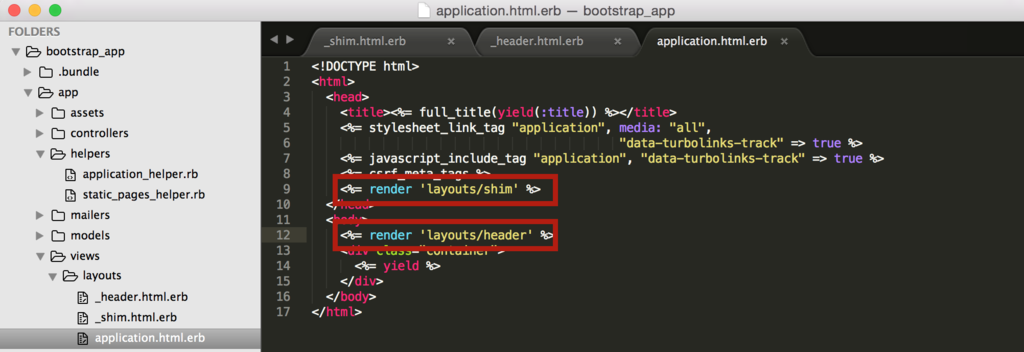
renderと呼ばれるRailsヘルパー呼び出しだけを使って、HTML shimのスタイルシート行を置換しています。
<%= render 'layouts/shim' %>
<%= render 'layouts/header' %>
HTML shim用のパーシャルを作成します。
app/view/layouts/_shim.html.erb

ヘッダー用のパーシャルを作成します。
app/view/layouts/_header.html.erb

作成したパーシャルの読み込みを行います。
app/view/layouts/application.html.erb
フッター用のパーシャルも作成します。
app/view/layouts/_footer.html.erb
<footer class="footer">
  <small>
    <a href="http://railstutorial.jp/">Rails Tutorial</a>
    by Michael Hartl
  </small>
  <nav>
    <ul>
      <li><%= link_to "About",   '#' %></li>
      <li><%= link_to "Contact", '#' %></li>
      <li><a href="http://news.railstutorial.jp/">News</a></li>
    </ul>
  </nav>
</footer>
フッターを追加するのでCSSも追加します。
/* footer */

footer {
  margin-top: 45px;
  padding-top: 5px;
  border-top: 1px solid #eaeaea;
  color: #999;
}

footer a {
  color: #555;
}

footer a:hover {
  color: #222;
}

footer small {
  float: left;
}

footer ul {
  float: right;
  list-style: none;
}

footer ul li {
  float: left;
  margin-left: 10px;
}
application.html.erbに追加します。

この時点でテストが問題なく動作することを確認してパーシャルの作成完了です。

ルートの定義とテスト
ルートの定義について進めていきます。
spec/requests/static_pages_spec.rb
visit '/static_pages/about'
上記のように指定している箇所を次の用に変更します。
visit about_path
※aboutページ以外も同様に変更します。また、Homeの場合は次のようにします。
visit root_path

これでテストを行うとエラーになることを確認できます。
$ bundle exec rspec spec/requests/static_pages_spec.rb
config/routes.rb
このファイルでルートの設定を行います。
get "static_pages/help"
上記のようにページを指定していましたが、これを下記のように変更します。
match '/help', to: 'static_pages#help', via: 'get'
Homeページのみ次のように指定します。
root 'static_pages#home'
これでルートの定義は完了です。テストも正常に実行されるようになります。
$ bundle exec rspec spec/requests/static_pages_spec.rb

ルートの定義が完了するとアクセス時のURLがスッキリします。

link_toメソッドでリンクの定義
ルートの定義が終わったのでリンク周りの実装ができるようになりました。about_pathなどの変数はHTML内でも利用できます。
<%= link_to "About", about_path %>
パーシャル化しているヘッダーとフッターのリンク部分を変更します。変数なのでシングルクォーテーションなどで囲う必要はありません。


Rspecによるテストの改善
full_titleメソッドを持つRSpecユーティリティ用ファイルを用意します。
spec/support/utilities.rb
def full_title(page_title)
  base_title = "Ruby on Rails Tutorial Sample App"
  if page_title.empty?
    base_title
  else
    "#{base_title} | #{page_title}"
  end
end
spec/supportディレクトリはRSpecによって自動的に読み込まれます。このfulltitleメソッドを使って、テストを次のように書くことができます。
spec/requests/static_pages_spec.rb
require 'spec_helper'

describe "Static pages" do

  subject { page }

  describe "Home page" do
    before { visit root_path }

    it { should have_content('Sample App') }
    it { should have_title(full_title('')) }
    it { should_not have_title('| Home') }
  end

  describe "Help page" do
    before { visit help_path }

    it { should have_content('Help') }
    it { should have_title(full_title('Help')) }
  end

  describe "About page" do
    before { visit about_path }

    it { should have_content('About') }
    it { should have_title(full_title('About Us')) }
  end
end
変更後にテストでエラーがでないことを確認します。

ここまでが静的ページ作成の流れです。最後にGitコミットなどを行って完了です。(Gitコミットの流れは下記リンク先を参照)tyoshikawa1106.hatenablog.com
